Issues with psycopg2 … again
In a previous post I had written about an issue I’d had with upgrading, installing, or just generally maintaining the python package psycopg2 (link).
I ran into that issue again today, and thought to myself, “Hey, I’ve had this problem before AND wrote something up about it. Let me go see what I did last time.”
I searched my site for psycopg2 and tried the solution, but I got the same forking error.
OK … let’s turn to the experts on the internet.
After a while I came across this article on StackOverflow but this specific answer helped get me up and running.
A side effect of all of this is that I upgraded from Python 3.7.5 to Python 3.8.1. I also updated all of my brew packages, and basically did a lot of cleaning up that I had neglected.
Not how I expected to spend my morning, but productive nonetheless.
My First Django Project
I've been writing code for about 15 years (on and off) and Python for about 4 or 5 years. With Python it's mostly small scripts and such. I’ve never considered myself a ‘real programmer’ (Python or otherwise).
About a year ago, I decided to change that (for Python at the very least) when I set out to do 100 Days Of Web in Python from Talk Python To Me. Part of that course were two sections taught by Bob regarding Django. I had tried learn Flask before and found it ... overwhelming to say the least.
Sure, you could get a ‘hello world’ app in 5 lines of code, but then what? If you wanted to do just about anything it required ‘something’ else.
I had tried Django before, but wasn't able to get over the 'hump' of deploying. Watching the Django section in the course made it just click for me. Finally, a tool to help me make AND deploy something! But what?
The Django App I wanted to create
A small project I had done previously was to write a short script for my Raspberry Pi to tell me when LA Dodger (Baseball) games were on (it also has beloved Dodger Announcer Vin Scully say his catch phrase, “It’s time for Dodger baseball!!!”).
I love the Dodgers. But I also love baseball. I love baseball so much I have on my bucket list a trip to visit all 30 MLB stadia. Given my love of baseball, and my new found fondness of Django, I thought I could write something to keep track of visited stadia. I mean, how hard could it really be?
What does it do?
My Django Site uses the MLB API to search for games and allows a user to indicate a game seen in person. This allows them to track which stadia you've been to. My site is composed of 4 apps:
- Users
- Content
- API
- Stadium Tracker
The API is written using Django Rest Framework (DRF) and is super simple to implement. It’s also really easy to changes to your models if you need to.
The Users app was inspired by Will S Vincent ( a member of the Django Software Foundation, author, and podcaster). He (and others) recommend creating a custom user model to more easily extend the User model later on. Almost all of what’s in my Users App is directly taken from his recommendations.
The Content App was created to allow me to update the home page, and about page (and any other content based page) using the database instead of updating html in a template.
The last App, and the reason for the site itself, is the Stadium Tracker! I created a search tool that allows a user to find a game on a specific day between two teams. Once found, the user can add that game to ‘Games Seen’. This will then update the list of games seen for that user AND mark the location of the game as a stadium visited. The best part is that because the game is from the MLB API I can do some interesting things:
- I can get the actual stadium from visited which allows the user to indicate historic (i.e. retired) stadia
- I can get details of the game (final score, hits, runs, errors, stories from MLB, etc) and display them on a details page.
That's great and all, but what does it look like?
The Search Tool

Stadia Listing
National League West

American League West

What’s next?
I had created a roadmap at one point and was able to get through some (but not all) of those items. Items left to do:
- Get Test coverage to at least 80% across the app (currently sits at 70%)
- Allow users to be based on social networks (right now I’m looking at Twitter, and Instagram) probably with the Django Allauth Package
- Add ability to for minor league team search and stadium tracking (this is already part of the MLB API, I just never implemented it)
- Allow user to search for range of dates for teams
- Update the theme ... it’s the default MUI CSS which is nice, but I’d rather it was something a little bit different
- Convert Swagger implementation from
django-rest-swaggertodrf-yasg
Final Thoughts
Writing this app did several things for me.
First, it removed some of the tutorial paralysis that I felt. Until I wrote this I didn’t think I was a web programmer (and I still don’t really), and therefore had no business writing a web app.
Second, it taught me how to use git more effectively. This directly lead to me contributing to Django itself (in a very small way via updates to documentation). It also allowed me to feel comfortable enough to write my first post on this very blog.
Finally, it introduced me to the wonderful ecosystem around Django. There is so much to learn, but the great thing is that EVERYONE is learning something. There isn’t anyone that knows it all which makes it easier to ask questions! And helps me in feeling more confident to answer questions when asked.
The site is deployed on Heroku and can be seen here. The code for the site can be seen here.
This article was also posted on the PyBit.es Blog
Using Python to Check for File Changes in Excel
The Problem
Data exchange in healthcare is ... harder than it needs to be. Not all partners in the healthcare arena understand and use technology to its fullest benefit.
Take for example several health plans which want data reported to them for CMS (Centers for Medicare and Medicaid Services) regulations. They will ask their 'delegated' groups to fill out an excel file. As in, they expect you will actually fill out an excel file, either by manually entering the data OR by potentially copying and pasting your data into their excel file.
They will also, quite frequently, change their mind on what they want AND the order in which they want the data to appear in their excel file. But there's no change log to tell you what (if anything has changed). All that you will get is an email which states, "Here's the new template to be used for report XYZ" ... even if this 'new' report is the same as the last one that was sent.
Some solutions might be to use versioning software (like Git) but all they will do is tell you that there is a difference, not what the difference is. For example, when looking at a simple excel file added to git and using git diff you see:
diff --git a/Book3.xlsx b/Book3.xlsx
index 05a8b41..e96cdb5 100644
Binary files a/Book3.xlsx and b/Book3.xlsx differ
This has been a giant pain in the butt for a while, but with the recent shelter-in-place directives, I have a bit more time on the weekends to solve these kinds of problems.
The Solution
Why Python of Course!
Only two libraries are needed to make the comparison: (1) os, (2) pandas
The basic idea is to:
- Load the files
- use pandas to compare the files
- write out the differences, if they exist
Load the Files
The code below loads the necessary libraries, and then loads the excel files into 2 pandas dataframes. One thing that my team has to watch out for are tab names that have leading spaces that aren't easy to see inside of excel. This can cause all sorts of nightmares from a troubleshooting perspective.
import os
import pandas as pd

file_original = os.path.join(\\path\\to\\original\\file, original_file.xlsx)
file_new = os.path.join(\\path\\to\\new\\file, new_file.xlsx)

sheet_name_original = name_of_sheet_in_original_file
sheet_name_new = name_of_sheet_in_new_file

df1 = pd.read_excel(file_original, sheet_name_original)
df2 = pd.read_excel(file_new, sheet_name_new)
Use Pandas to compare
This is just a one liner, but is super powerful. Pandas DataFrames have a method to see if two frames are the same. So easy!
data_frame_same = df1.equals(df2)
Write out the differences if they exist:
First we specify where we're going to write out the differences to. We use w+ because we'll be writing out to a file AND potentially appending, depending on differences that are found. The f.truncate(0) will clear out the file so that we get just the differences on this run. If we don't do this then we'll just append to the file over and over again ... and that can get confusing.
f.open(\\path\\to\\file\\to\\write\\differences.txt, 'w+')
f.truncate(0)
Next, we check to see if there are any differences and if they are, we write a simple message to our text file from above:
if data_frame_same:
    f.write('No differences detected')
If differences are found, then we loop through the lines of the file, finding the differences and and writing them to our file:
else:
    f.write('*** WARNING *** Differences Found\n\n')
    for c in range(max(len(df1.columns), len(df2.columns))):
        try:
            header1 = df1.columns[c].strip().lower().replace('\n', '')
            header2 = df2.columns[c].strip().lower().replace('\n', '')
            if header1 == header2:
                f.write(f'Headers are the same: {header1}\n')
            else:
                f.write(f'Difference Found: {header1} -> {header2}\n')
        except:
            pass

f.close()
The code above finds the largest column header list (the file may have had a new column added) and uses a try/except to let us get the max of that to loop over.
Next, we check for differences between header1 and header2. If they are the same, we just write that out, if they aren't, we indicate that header1 was transformed to header2
A sample of the output when the column headers have changed is below:
*** WARNING *** Differences Found

Headers are the same: beneficiary first name
...
Difference Found: person who made the request -> who made the request?
...
Future Enhancements
In just using it a couple of times I've already spotted a couple of spots for enhancements:
- Use
inputto allow the user to enter the names/locations of the files - Read the tab names and allow user to select from command line
Conclusion
I'm looking forward to implementing the enhancements mentioned above to make this even more user friendly. In the mean time, it'll get the job done and allow someone on my team to work on something more interesting then comparing excel files to try (and hopefully find) differences.
Mischief Managed
A few weeks back I decided to try and update my Python version with Homebrew. I had already been through an issue where the an update like this was going to cause an issue, but I also knew what the fix was.
With this knowledge in hand I happily performed the update. To my surprise, 2 things happened:
- The update seemed to have me go from Python 3.7.6 to 3.7.3
- When trying to reestablish my
Virtual Environmenttwo packages wouldn’t installed:psycopg2anddjango-heroku
Now, the update/backdate isn’t the end of the world. Quite honestly, next weekend I’m going to just ditch homebrew and go with the standard download from Python.org because I’m hoping that this non-sense won’t be an issue anymore
The second issue was a bit more irritating though. I spent several hours trying to figure out what the problem was, only to find out, there wasn’t one really.
The ‘fix’ to the issue was to
- Open PyCharm
- Go to Setting
- Go to ‘Project Interpreter’
- Click the ‘+’ to add a package
- Look for the package that wouldn’t install
- Click ‘Install Package’
- Viola ... mischief managed
The next time this happens I’m just buying a new computer
CBV - PasswordChangeDoneView
From Classy Class Based Views PasswordChangeDoneView
Render a template. Pass keyword arguments from the URLconf to the context.
Attributes
- template_name: Much like the
LogoutViewthe default view is the Django skin. Create your ownpassword_change_done.htmlfile to keep the user experience consistent across the site. - title: the default uses the function
gettext_lazy()and passes the string ‘Password change successful’. The functiongettext_lazy()will translate the text into the local language if a translation is available. I’d just keep the default on this.
Example
views.py
class myPasswordChangeDoneView(PasswordChangeDoneView):
    pass
urls.py
path('password_change_done_view/', views.myPasswordChangeDoneView.as_view(), name='password_change_done_view'),
password_change_done.html
{% extends "base.html" %}
{% load i18n %}

{% block content %}
    <h1>
    {% block title %}
        {{ title }}
    {% endblock %}
    </h1>
<p>{% trans "Password changed" %}</p>
{% endblock %}
settings.py
LOGIN_URL = '/<app_name>/login_view/'
The above assumes that have this set up in your urls.py
Special Notes
You need to set the URL_LOGIN value in your settings.py. It defaults to /accounts/login/. If that path isn’t valid you’ll get a 404 error.
Diagram
A visual representation of how PasswordChangeDoneView is derived can be seen here:
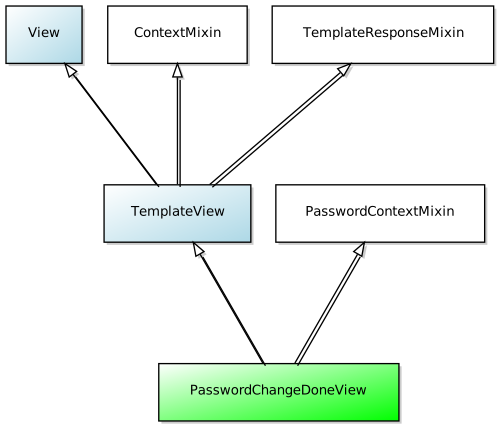
Conclusion
Again, not much to do here. Let Django do all of the heavy lifting, but be mindful of the needed work in settings.py and the new template you’ll need/want to create
CBV - PasswordChangeView
From Classy Class Based Views PasswordChangeView
A view for displaying a form and rendering a template response.
Attributes
- form_class: The form that will be used by the template created. Defaults to Django’s
PasswordChangeForm - success_url: If you’ve created your own custom PasswordChangeDoneView then you’ll need to update this. The default is to use Django’s but unless you have a top level
urls.pyhas the name ofpassword_change_doneyou’ll get an error. - title: defaults to ‘Password Change’ and is translated into local language
Example
views.py
class myPasswordChangeView(PasswordChangeView):
    success_url = reverse_lazy('rango:password_change_done_view')
urls.py
path('password_change_view/', views.myPasswordChangeView.as_view(), name='password_change_view'),
password_change_form.html
{% extends "base.html" %}
{% load i18n %}

{% block content %}
    <h1>
    {% block title %}
        {{ title }}
    {% endblock %}
    </h1>
<p>{% trans "Password changed" %}</p>
{% endblock %}
Diagram
A visual representation of how PasswordChangeView is derived can be seen here:
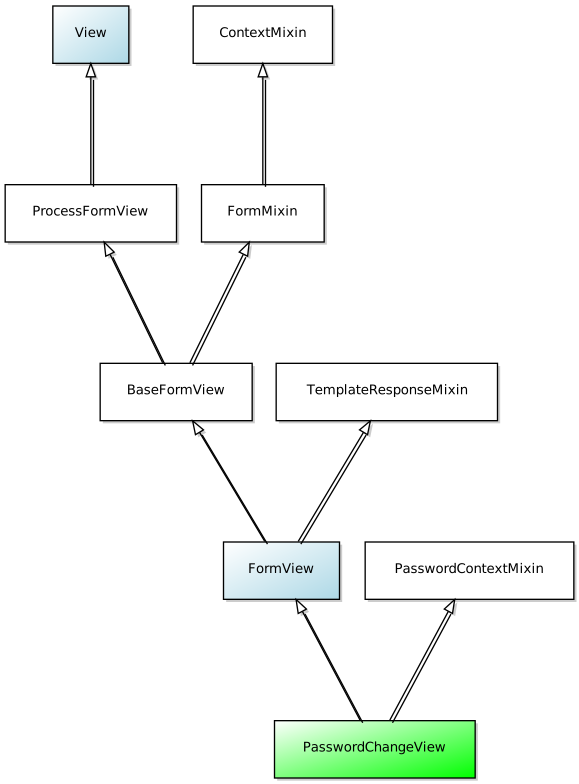
Conclusion
The only thing to keep in mind here is the success_url that will most likely need to be set based on the application you’ve written. If you get an error about not being able to use reverse to find your template, that’s the issue.
CBV - LoginView
From Classy Class Based Views LoginView
Display the login form and handle the login action.
Attributes
- authentication_form: Allows you to subclass
AuthenticationFormif needed. You would want to do this IF you need other fields besides username and password for login OR you want to implement other logic than just account creation, i.e. account verification must be done as well. For details see example by Vitor Freitas for more details - form_class: The form that will be used by the template created. Defaults to Django’s
AuthenticationForm - redirect_authenticated_user: If the user is logged in then when they attempt to go to your login page it will redirect them to the
LOGIN_REDIRECT_URLconfigured in yoursettings.py - redirect_field_name: similar idea to updating what the
nextfield will be from theDetailView. If this is specified then you’ll most likely need to create a custom login template. - template_name: The default value for this is
registration\login.html, i.e. a file calledlogin.htmlin theregistrationdirectory of thetemplatesdirectory.
There are no required attributes for this view, which is nice because you can just add pass to the view and you’re set (for the view anyway you still need an html file).
You’ll also need to update settings.py to include a value for the LOGIN_REDIRECT_URL.
Note on redirect_field_name
Per the Django Documentation:
If the user isn’t logged in, redirect to settings.LOGIN*URL, passing the current absolute path in the query string. Example: /accounts/login/?next=/polls/3/. *
If redirect_field_name is set then the URL would be:
/accounts/login/?<redirect_field_name>=/polls/3
Basically, you only use this if you have a pretty good reason.
Example
views.py
class myLoginView(LoginView):
    pass
urls.py
path('login_view/', views.myLoginView.as_view(), name='login_view'),
registration/login.html
{% extends "base.html" %}
{% load i18n %}

{% block content %}
<form method="post" action=".">
  {% csrf_token %}

  <div class="mui--text-danger">
    {% for error in form.non_field_errors %}
      {{error}}
    {% endfor %}
  </div>

  <div class="mui-textfield">
    {{ form.username.label }}
    {{ form.username }}
  </div>
  <div class="mui-textfield">
    {{ form.password.label }}
    {{ form.password }}
  </div>

  <input class="mui-btn mui-btn--primary" type="submit" value="{% trans 'Log in' %}" />
  <input type="hidden" name="next" value="{{ request.GET.next }}" />
</form>

<br><div class="mui-divider"></div><br>
{% endblock %}
settings.py
LOGIN_REDIRECT_URL = '/<app_name>/'
Diagram
A visual representation of how LoginView is derived can be seen here:
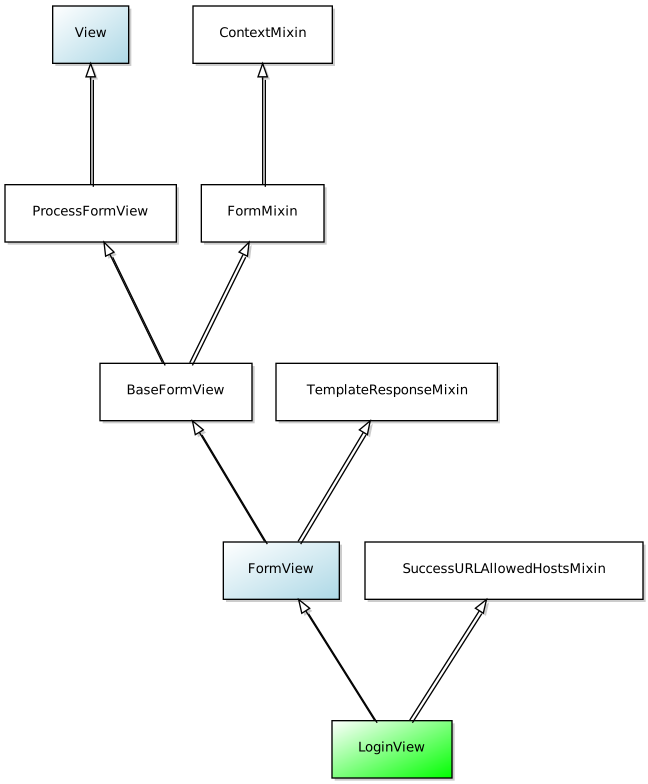
Conclusion
Really easy to implement right out of the box but allows some nice customization. That being said, make those customizations IF you need to, not just because you think you want to.
CBV - LogoutView
From Classy Class Based Views LogoutView
Log out the user and display the 'You are logged out' message.
Attributes
- next_page: redirects the user on logout.
- redirect_field_name: The name of a GET field containing the URL to redirect to after log out. Defaults to next. Overrides the next_page URL if the given GET parameter is passed. 1
- template_name: defaults to
registration\logged_out.html. Even if you don’t have a template the view does get rendered but it uses the default Django skin. You’ll want to create your own to allow the user to logout AND to keep the look and feel of the site.
Example
views.py
class myLogoutView(LogoutView):
    pass
urls.py
path('logout_view/', views.myLogoutView.as_view(), name='logout_view'),
registrationlogged_out.html
{% extends "base.html" %}
{% load i18n %}

{% block content %}
<p>{% trans "Logged out" %}</p>
{% endblock %}
Diagram
A visual representation of how LogoutView is derived can be seen here:
Image Link from CCBV YUML goes here
Conclusion
I’m not sure how it could be much easier to implement a logout page.
- Per Django Docs ↩︎
CBV - DeleteView
From Classy Class Based Views DeleteView
View for deleting an object retrieved with self.get*object(), with a *
response rendered by a template.
Attributes
There are no new attributes, but 2 that we’ve seen are required: (1) queryset or model; and (2) success_url
Example
views.py
class myDeleteView(DeleteView):
    queryset = Person.objects.all()
    success_url = reverse_lazy('rango:list_view')
urls.py
path('delete_view/<int:pk>', views.myDeleteView.as_view(), name='delete_view'),
\<template_name>.html
Below is just the form that would be needed to get the delete to work.
    <form method="post">
    {% csrf_token %}
    <table border="1">
        <tr>
        <th>First Name</th>
        <th>Last Name</th>
        </tr>
        <tr>
            <td>{{ person.first_name }}</td>
            <td>{{ person.last_name }}</td>
        </tr>
    </table>
    <div>
        <a href="{% url 'rango:list_view' %}">Back</a>
        <input type="submit" value="Delete">
    </div>
    </form>
Diagram
A visual representation of how DeleteView is derived can be seen here:
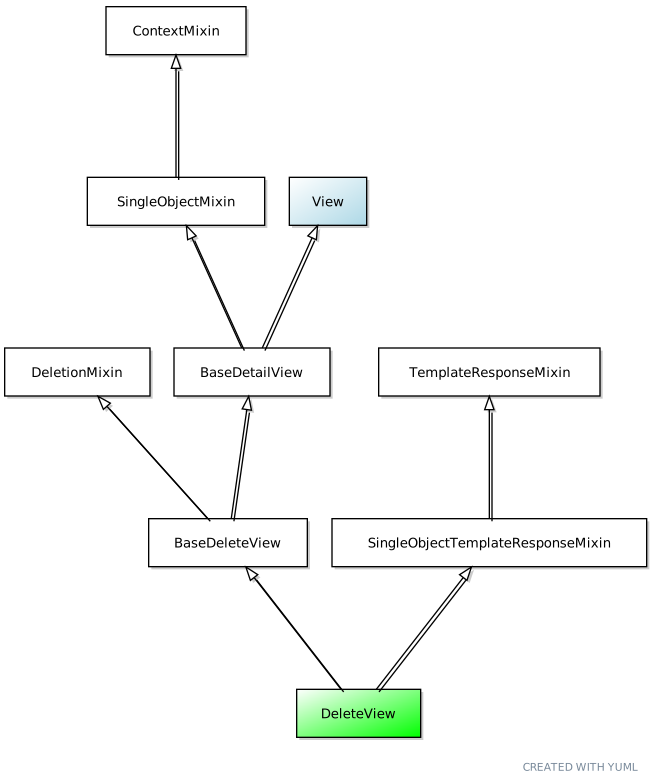
Conclusion
As far as implementations, the ability to add a form to delete data is about the easiest thing you can do in Django. It requires next to nothing in terms of implementing. We now have step 4 of a CRUD app!
CBV - UpdateView
From Classy Class Based Views UpdateView
View for updating an object, with a response rendered by a template.
Attributes
Two attributes are required to get the template to render. We’ve seen queryset before and in CreateView we saw fields. As a brief refresher
- fields: specifies what fields from the model or queryset will be displayed on the rendered template. You can you set
fieldsto__all__if you want to return all of the fields - success_url: you’ll want to specify this after the record has been updated so that you know the update was made.
Example
views.py
class myUpdateView(UpdateView):
    queryset = Person.objects.all()
    fields = '__all__'
    extra_context = {
        'type': 'Update'
    }
    success_url = reverse_lazy('rango:list_view')
urls.py
path('update_view/<int:pk>', views.myUpdateView.as_view(), name='update_view'),
\<template>.html
{% block content %}
    <h3>{{ type }} View</h3>
    {% if type == 'Create' %}
        <form action="." method="post">
    {% else %}
        <form action="{% url 'rango:update_view' object.id %}" method="post">
    {% endif %}
    {% csrf_token %}
    <table>
    {{ form.as_p }}
    </table>
    <button type="submit">SUBMIT</button>
    </form>
{% endblock %}
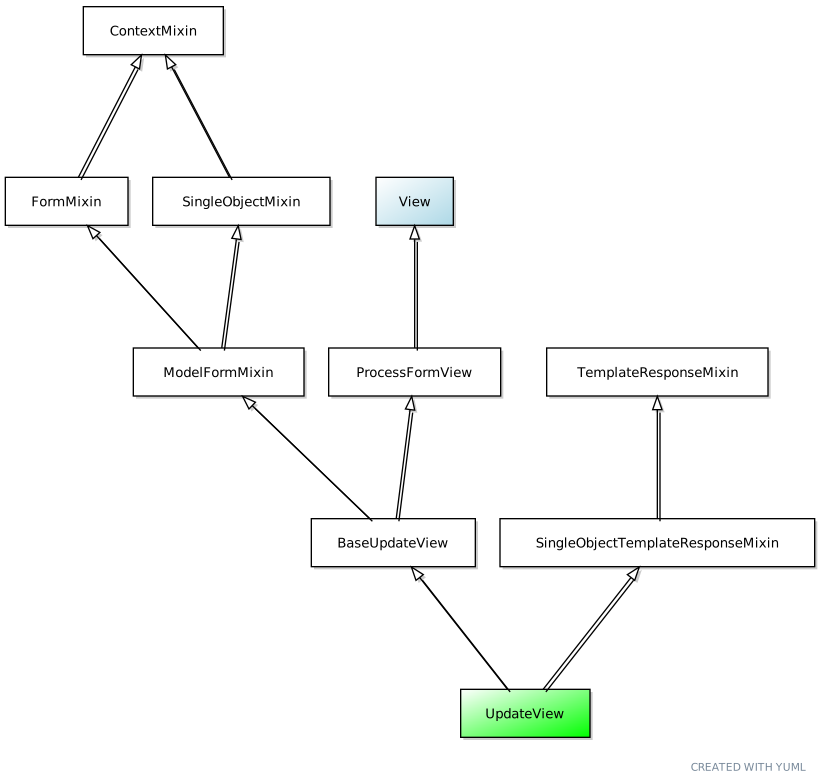
Diagram
A visual representation of how UpdateView is derived can be seen here:
Conclusion
A simple way to implement a form to update data in a model. Step 3 for a CRUD app is now complete!
Page 6 / 13