Setting the Timezone on my server
When I scheduled my last post on December 14th to be published at 6pm that night I noticed that the schedule time was a bit … off:

I realized that the server times as still set to GMT and that I had missed the step in the Linode Getting Started guide to Set the Timezone.
No problem, just found the Guide, went to this section and ran the following command:
sudo dpkg-reconfigure tzdata
I then selected my country (US) and my time zone (Pacific-Ocean) and now the server has the right timezone.
Setting up the site with SSL
I’ve written about my migration from Squarespace to Wordpress earlier this year. One thing I lost with that migration when I went to Wordpress in AWS was having SSL available. While I’m sure Van Hoet will “well actually” me on this, I never could figure out how to set it up ( not that I tried particularly hard ).
The thing is now that I’m hosting on Linode I’m finding some really useful tutorials. This one showed me exactly what I needed to do to get it set up.
Like any good planner I read the how to several times and convinced myself that it was actually relatively straight forward to do and so I started.
Step 1 Creating the cert files
Using this tutorialI was able to create the required certificates to set up SSL. Of course, I ran into an issue when trying to run this command
chmod 400 /etc/ssl/private/example.com.key
I did not have persmision to chmod on that file. After a bit of Googling I found that I can switch to interactive root mode by running the command
sudo -i
It feels a bit dangerous to be able to just do that (I didn’t have to enter a password) but it worked.
Step 2
OK, so the tutorial above got me most(ish) of the way there, but I needed to sign my own certificate. For that I used this tutorial. I followed the directions but kept coming up with an error:
Problem binding to port 443: Could not bind to the IPv4 or IPv6
I rebooted my Linode server. I restarted apache. I googled and I couldn’t find the answer I was looking for.
I wanted to give up, but tried Googling one more time. Finally! An answer so simple it couldn’t work. But then it did.
Stop Apache, run the command to start Apache back up and boom. The error went away and I had a certificate.
However, when I tested the site using SSL LabsI was still getting an error / warning for an untrusted site.
🤦🏻♂️
—
OK ... take 2
I nuked my linode host to start over again.
First things first ... we need to needed to secure my server. Next, we need to set up the server as a LAMP and Linode has this tutorial to walk me through the steps of setting it up.
I ran into an issue when I restarted the Apache service and realized that I had set my host name but hadn’t update the hosts file. No problem though. Just fire up vim and make the additional line:
127.0.0.1 milo
Next, I used this tutorial to create a self signed certificate and this to get the SSL to be set up.
One thing that I expected was that it would just work. After doing some more reading what I realized was that a self signed certificate is useful for internal applications. Once I realized this I decided to not redirect to SSL (i.e. part 443) for my site but instead to just use the ssl certificate it post from Ulysses securely.
Why go to all this trouble just too use a third party application to post to a WordPress site? Because Ulysses is an awesome writing app and I love it. If you’re writing and not using it, I’d give it a try. It really is a nice app.
So really, no good reason. Just that. And, I like to figure stuff out.
OK, so Ulysses is great. But why the need for an SSL certificate? Mostly because when I tried to post to Wordpress from Ulysses without any certificates ( self signed or not ) I would get a warning that my traffic was unencrypted and could be snooped. I figured, better safe than sorry.
Now with the ssl cert all I had to do was trust my self signed certificate and I was set1
- Mostly. I still needed to specify the domain with www otherwise it didn’t work. ↩︎
Installing fonts in Ulysses
One of the people I follow online, Federico Viticci, is an iOS power user, although I would argue that phrase doesn’t really do him justice. He can make the iPad do things that many people can’t get Macs to do.
Recently he posted an article on a new font he is using in Ulysses and I wanted to give it a try. The article says:
Installing custsom fonts in Ulysses for iOS is easy: go to the GitHub page, download each one, and open them in Ulysses (with the share sheet) to install them.
Simple enough, but it wasn’t clicking for me. I kept thinking I had done something wrong. So I thought I’d write up the steps I used so I wouldn’t forget the next time I need to add a new font.
Downloading the Font
- Download the font to somewhere you can get it. I chose to save it to iCloud and use the
Filesapp - Hit Select in the
Filesapp - Click
Share - Select
Open in Ulysses - The custom font is now installed and being used.
Checking the Font:
- Click the ‘A’ in the writing screen (this is the font selector) located in the upper right hand corner of Ulysses

- Notice that the Current font indicates it’s a custom font (in This case iA Writer Duospace:

Not that hard, but there’s no feedback telling you that you have been successful so I wasn’t sure if I had done it or not.
Switching to Linode
Switching to Linode
I’ve been listening to a lot of Talk Python to me lately ... I mean a lot. Recently there was a coupon code for Linode that basically got you four months free with a purchase of a single month, so I thought, ‘what the hell’?
Anyway, I have finally been able to move everything from AWS to Linode for my site and I’m able to publish from my beloved Ulysses.
Initially there was an issue with xmlrpc which I still haven’t fully figured out.
I tried every combination of everything and finally I’m able to publish.
I’m not one to look a gift horse in the mouth so I’ll go ahead and take what I can get. I had meant to document a bit more / better what I had done, but since it basically went from not working to working, I wouldn’t know what to write at this point.
The strangest part is that from the terminal the code I was using to test the issue still returns and xmlrpc faultCode error of -32700 but I’m able to connect now.
I really wish i understood this better, but I’m just happy that I’m able to get it all set and ready to go.
Next task ... set up SSL!
Making Background Images
I'm a big fan of podcasts. I've been listening to them for 4 or 5 years now. One of my favorite Podcast Networks, Relay just had their second anniversary. They offer memberships and after listening to hours and hours of All The Great Shows I decided that I needed to become a member.
One of the awesome perks of Relay membership is a set of Amazing background images.
This is fortuitous as I've been looking for some good backgrounds for my iMac, and so it seemed like a perfect fit.
On my iMac I have several spaces configured. One for Writing, one for Podcast and one for everything else. I wanted to take the backgrounds from Relay and have them on the Writing space and the Podcasting space, but I also wanted to be able to distinguish between them. One thing I could try to do would be to open up an image editor (Like Photoshop, Pixelmater or Acorn) and add text to them one at a time (although I'm sure there is a way to script them) but I decided to see if I could do it using Python.
Turns out, I can.
This code will take the background images from my /Users/Ryan/Relay 5K Backgrounds/ directory and spit them out into a subdirectory called Podcasting
from PIL import Image, ImageStat, ImageFont, ImageDraw
from os import listdir
from os.path import isfile, join

# Declare Text Attributes
TextFontSize = 400
TextFontColor = (128,128,128)
font = ImageFont.truetype("~/Library/Fonts/Inconsolata.otf", TextFontSize)

mypath = '/Users/Ryan/Relay 5K Backgrounds/'
onlyfiles = [f for f in listdir(mypath) if isfile(join(mypath, f))]
onlyfiles.remove('.DS_Store')

rows = len(onlyfiles)

for i in range(rows):
    img = Image.open(mypath+onlyfiles[i])
    width, height = img.size
    draw = ImageDraw.Draw(img)
    TextXPos = 0.6 * width
    TextYPos = 0.85 * height
    draw.text((TextXPos, TextYPos),'Podcasting',TextFontColor,font=font)
    draw.text
    img.save('/Users/Ryan/Relay 5K Backgrounds/Podcasting/'+onlyfiles[i])
    print('/Users/Ryan/Relay 5K Backgrounds/Podcasting/'+onlyfiles[i]+' successfully saved!')
This was great, but it included all of the images, and some of them are really bright. I mean, like really bright.
So I decided to use something I learned while helping my daughter with her Science Project last year and determine the brightness of the images and use only the dark ones.
This lead me to update the code to this:
from PIL import Image, ImageStat, ImageFont, ImageDraw
from os import listdir
from os.path import isfile, join

def brightness01( im_file ):
   im = Image.open(im_file).convert('L')
   stat = ImageStat.Stat(im)
   return stat.mean[0]

# Declare Text Attributes
TextFontSize = 400
TextFontColor = (128,128,128)
font = ImageFont.truetype("~/Library/Fonts/Inconsolata.otf", TextFontSize)

mypath = '/Users/Ryan/Relay 5K Backgrounds/'
onlyfiles = [f for f in listdir(mypath) if isfile(join(mypath, f))]
onlyfiles.remove('.DS_Store')

darkimages = []

rows = len(onlyfiles)

for i in range(rows):
    if brightness01(mypath+onlyfiles[i]) <= 65:
        darkimages.append(onlyfiles[i])

darkimagesrows = len(darkimages)

for i in range(darkimagesrows):
    img = Image.open(mypath+darkimages[i])
    width, height = img.size
    draw = ImageDraw.Draw(img)
    TextXPos = 0.6 * width
    TextYPos = 0.85 * height
    draw.text((TextXPos, TextYPos),'Podcasting',TextFontColor,font=font)
    draw.text
    img.save('/Users/Ryan/Relay 5K Backgrounds/Podcasting/'+darkimages[i])
    print('/Users/Ryan/Relay 5K Backgrounds/Podcasting/'+darkimages[i]+' successfully saved!')
I also wanted to have backgrounds generated for my Writing space, so I tacked on this code:
for i in range(darkimagesrows):
    img = Image.open(mypath+darkimages[i])
    width, height = img.size
    draw = ImageDraw.Draw(img)
    TextXPos = 0.72 * width
    TextYPos = 0.85 * height
    draw.text((TextXPos, TextYPos),'Writing',TextFontColor,font=font)
    draw.text
    img.save('/Users/Ryan/Relay 5K Backgrounds/Writing/'+darkimages[i])
    print('/Users/Ryan/Relay 5K Backgrounds/Writing/'+darkimages[i]+' successfully saved!')
The print statements at the end of the for loops were so that I could tell that something was actually happening. The images were VERY large (close to 10MB for each one) so the PIL library was taking some time to process the data and I was concerned that something had frozen / stopped working
This was a pretty straightforward project, but it was pretty fun. It allowed me to go from this:

To this:

For the text attributes I had to play around with them for a while until I found the color, font and font size that I liked and looked good (to me).
The Positioning of the text also took a bit of experimentation, but a little trial and error and I was all set.
Also, for the brightness level of 65 I just looked at the images that seemed to work and found a threshold to use. The actual value may vary depending on the look you're doing for.
Presenting Data - Referee Crew Calls in the NFL
One of the great things about computers is their ability to take tabular data and turn them into pictures that are easier to interpret. I'm always amazed when given the opportunity to show data as a picture, more people don't jump at the chance.
For example, this piece on ESPN regarding the difference in officiating crews and their calls has some great data in it regarding how different officiating crews call games.
One thing I find a bit disconcerting is:
- ~~One of the rows is missing data so that row looks 'odd' in the context of the story and makes it look like the writer missed a big thing ... they didn't~~ (it's since been fixed)
- This tabular format is just begging to be displayed as a picture.
Perhaps the issue here is that the author didn't know how to best visualize the data to make his story, but I'm going to help him out.
If we start from the underlying premise that not all officiating crews call games in the same way, we want to see in what ways they differ.
The data below is a reproduction of the table from the article:
REFEREE DEF. OFFSIDE ENCROACH FALSE START NEUTRAL ZONE TOTAL
Triplette, Jeff 39 2 34 6 81 Anderson, Walt 12 2 39 10 63 Blakeman, Clete 13 2 41 7 63 Hussey, John 10 3 42 3 58 Cheffers, Cartlon 22 0 31 3 56 Corrente, Tony 14 1 31 8 54 Steratore, Gene 19 1 29 5 54 Torbert, Ronald 9 4 31 7 51 Allen, Brad 15 1 28 6 50 McAulay, Terry 10 4 23 12 49 Vinovich, Bill 8 7 29 5 49 Morelli, Peter 12 3 24 9 48 Boger, Jerome 11 3 27 6 47 Wrolstad, Craig 9 1 31 5 46 Hochuli, Ed 5 2 33 4 44 Coleman, Walt 9 2 25 4 40 Parry, John 7 5 20 6 38
The author points out:
Jeff Triplette's crew has called a combined 81 such penalties -- 18 more than the next-highest crew and more than twice the amount of two others
The author goes on to talk about his interview with Mike Pereira (who happens to be ~~pimping~~ promoting his new book).
While the table above is helpful it's not an image that you can look at and ask, "Man, what the heck is going on?" There is a visceral aspect to it that says, something is wrong here ... but I can't really be sure about what it is.
Let's sum up the defensive penalties (Defensive Offsides, Encroachment, and Neutral Zone Infractions) and see what the table looks like:
REFEREE DEF Total OFF Total TOTAL
Triplette, Jeff 47 34 81 Anderson, Walt 24 39 63 Blakeman, Clete 22 41 63 Hussey, John 16 42 58 Cheffers, Cartlon 25 31 56 Corrente, Tony 23 31 54 Steratore, Gene 25 29 54 Torbert, Ronald 20 31 51 Allen, Brad 22 28 50 McAulay, Terry 26 23 49 Vinovich, Bill 20 29 49 Morelli, Peter 24 24 48 Boger, Jerome 20 27 47 Wrolstad, Craig 15 31 46 Hochuli, Ed 11 33 44 Coleman, Walt 15 25 40 Parry, John 18 20 38
Now we can see what might actually be going on, but it's still a bit hard for those visual people. If we take this data and then generate a scatter plot we might have a picture to show us the issue. Something like this:
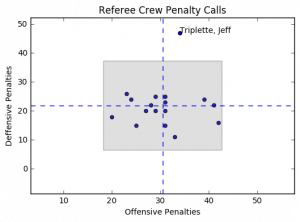
The horizontal dashed blue lines represent the average defensive calls per crew while the vertical dashed blue line represents the average offensive calls per crew. The gray box represents the area containing plus/minus 2 standard deviations from the mean for both offensive and defensive penalty calls.
Notice anything? Yeah, me too. Jeff Triplette's crew is so far out of range for defensive penalties it's like they're watching a different game, or reading from a different play book.
What I'd really like to be able to do is this same analysis but on a game by game basis. I don't think this would really change the way that Jeff Triplette and his crew call games, but it may point out some other inconsistencies that are worth exploring.
Code for this project can be found on my GitHub Repo
Dropbox Files Word Cloud
In one of my previous posts I walked through how I generated a wordcloud based on my most recent 20 tweets. I though it would be neat to do this for my Dropbox file names as well. just to see if I could.
When I first tried to do it (as previously stated, the Twitter Word Cloud post was the first python script I wrote) I ran into some difficulties. I didn't really understand what I was doing (although I still don't really understand, I at least have a vague idea of what the heck I'm doing now).
The script isn't much different than the Twitter word cloud. The only real differences are:
- the way in which the
wordsvariable is being populated - the mask that I'm using to display the cloud
In order to go get the information from the file system I use the glob library:
import glob
The next lines have not changed
import matplotlib.pyplot as plt
from wordcloud import WordCloud, STOPWORDS
from scipy.misc import imread
Instead of writing to a 'tweets' file I'm looping through the files, splitting them at the / character and getting the last item (i.e. the file name) and appending it to the list f:
f = []
for filename in glob.glob('/Users/Ryan/Dropbox/Ryan/**/*', recursive=True):
    f.append(filename.split('/')[-1])
The rest of the script generates the image and saves it to my Dropbox Account. Again, instead of using a Twitter logo, I'm using a Cloud image I found here

words = ' '
for line in f:
    words= words + line

stopwords = {'https'}

logomask = imread('mask-cloud.png')

wordcloud = WordCloud(
    font_path='/Users/Ryan/Library/Fonts/Inconsolata.otf',
    stopwords=STOPWORDS.union(stopwords),
    background_color='white',
    mask = logomask,
    max_words=1000,
    width=1800,
    height=1400
).generate(words)

plt.imshow(wordcloud.recolor(color_func=None, random_state=3))
plt.axis('off')
plt.savefig('/Users/Ryan/Dropbox/Ryan/Post Images/dropbox_wordcloud.png', dpi=300)
plt.show()
And we get this:

Installing the osmnx package for Python
I read about a cool gis package for Python and decided I wanted to play around with it. This post isn't about any of the things I've learned about the package, it's so I can remember how I installed it so I can do it again if I need to. The package is described by it's author in his post
To install osmnx I needed to do the following:
-
Install Home Brew if it's not already installed by running this command (as an administrator) in the
terminal:/usr/bin/ruby -e "$(curl -fsSL https://raw.githubusercontent.com/Homebrew/install/master/install)" -
Use Home Brew to install the
spatialindexdependency. From theterminal(again as an administrator):brew install spatialindex -
In python run pip to install
rtree:pip install rtree -
In python run pip to install
osmnxpip install osmnx
I did this on my 2014 iMac but didn't document the process. This lead to a problem when I tried to run some code on my 2012 MacBook Pro.
Step 3 may not be required, but I'm not sure and I don't want to not have it written down and then wonder why I can't get osmnx to install in 3 years when I try again!
Remember, you're not going to remember what you did, so you need to write it down!
Twitter Word Cloud
As previously mentioned I'm a bit of a Twitter user. One of the things that I came across, actually the first python project I did, was writing code to create a word cloud based on the most recent 20 posts of my Twitter feed.
I used a post by Sebastian Raschka and a post on TechTrek.io as guides and was able to generate the word cloud pretty easily.
As usual, we import the need libraries:
import tweepy, json, random
from tweepy import OAuthHandler
import matplotlib.pyplot as plt
from wordcloud import WordCloud, STOPWORDS
from scipy.misc import imread
The code below allows access to my feed using secret keys from my twitter account. They have been removed from the post so that my twitter account doesn't stop being mine:
consumer_key = consumer_key
consumer_secret = consumer_secret
access_token = access_token
access_secret = access_secret

auth = OAuthHandler(consumer_key, consumer_secret)
auth.set_access_token(access_token, access_secret)

api = tweepy.API(auth)
Next I open a file called tweets and write to it the tweets (referred to in the for loop as status) and encode with utf-8. If you don't do the following error is thrown: TypeError: a bytes-like object is required, not 'str'. And who wants a TypeError to be thrown?
f = open('tweets', 'wb')

for status in api.user_timeline():
    f.write(api.get_status(status.id).text.encode("utf-8"))
f.close()
Now I'm ready to do something with the tweets that I collected. I read the file into a variable called words
words=' '
count =0
f = open('tweets', 'rb')
for line in f:
    words= words + line.decode("utf-8")
f.close
Next, we start on constructing the word cloud itself. We declare words that we want to ignore (in this case https is ignored, otherwise it would count the protocol of links that I've been tweeting).
stopwords = {'https', 'co', 'RT'}
Read in the twitter bird to act as a mask
logomask = imread('twitter_mask.png')
Finally, generate the wordcloud, plot it and save the image:
wordcloud = WordCloud(
    font_path='/Users/Ryan/Library/Fonts/Inconsolata.otf',
    stopwords=STOPWORDS.union(stopwords),
    background_color='white',
    mask = logomask,
    max_words=500,
    width=1800,
    height=1400
).generate(words)

plt.imshow(wordcloud.recolor(color_func=None, random_state=3))
plt.axis('off')
plt.savefig('./Twitter Word Cloud - '+time.strftime("%Y%m%d")+'.png', dpi=300)
plt.show()
The second to last line generates a dynamically named file based on the date so that I can do this again and save the image without needing to do too much thinking.
Full Code can be found on my GitHub Report
My Twitter Word Cloud as of today looks like this:
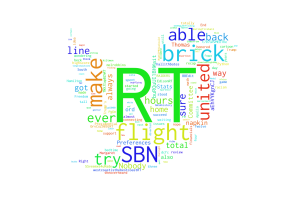
I think it will be fun to post this image every once in a while, so as I remember, I'll run the script again and update the Word Cloud!
Home, End, PgUp, PgDn ... BBEdit Preferences
As I've been writing up my posts for the last couple of days I've been using the amazing macOS Text Editor BBEdit. One of the things that has been tripping me up though are my 'Windows' tendencies on the keyboard. Specifically, my muscle memory of the use and behavior of the Home, End, PgUp and PgDn keys. The default behavior for these keys in BBEdit are not what I needed (nor wanted). I lived with it for a couple of days figuring I'd get used to it and that would be that.
While driving home from work today I was listening to ATP Episode 196 and their Post-Show discussion of the recent departure of Sal Soghoian who was the Project Manager for the macOS automation. I'm not sure why, but suddenly it clicked with me that I could probably change the behavior of the keys through the Preferences for the Keyboard (either system wide, or just in the Application).
When I got home I fired up BBEdit and jumped into the preferences and saw this:

I made a couple of changes, and now the keys that I use to navigate through the text editor are now how I want them to be:

Nothing too fancy, or anything, but goodness, does it feel right to have the keys work the way I need them to.
Page 12 / 13